
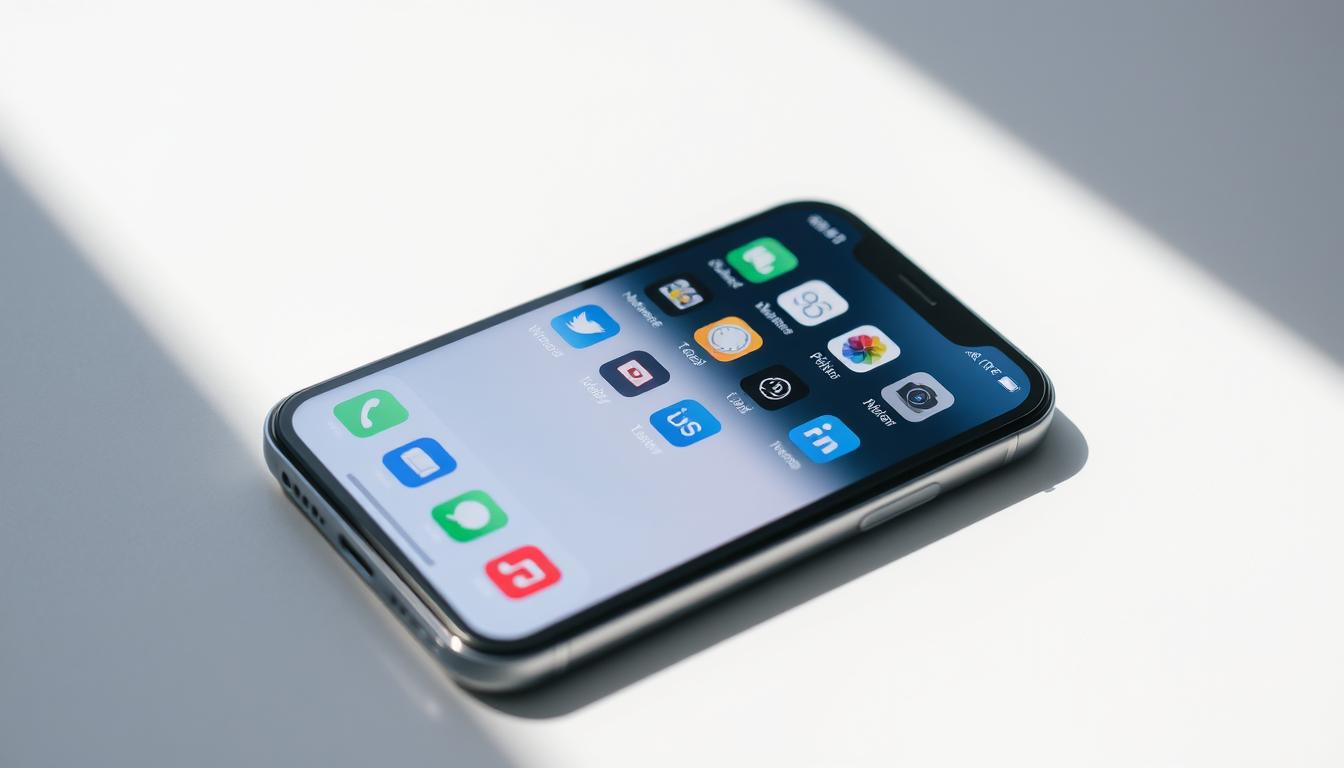
Smartphone screens can get messy with too many apps. Most people have 80–100 apps, but only use 9–10 often. This mess can make you feel stressed and lost.
Having a tidy phone screen is more than just looking good. It makes you more productive. Imagine saving time and feeling less stressed with a well-organized phone.
People spend 3 hours and 15 minutes daily on their phones. This can be distracting with all the notifications. Organizing apps into folders can save you 30% of search time.
Also, 70% of iPhone users find Focus modes helpful. A clean app system makes daily tasks easier and reduces stress. This guide will show you how to make your phone screen tidy and useful.
Assess Your Current App Situation
Begin by doing an app audit to see how you use your device. Open your device settings to check your app inventory. Many phones show app usage stats like how long you’ve used them and when you last opened them.
These tools help you find out which apps are important and which are just taking up space. They show which apps you don’t use anymore.
Digital hoarding makes your screen messy and slows you down. If you haven’t used an app in over six months, it’s probably time to let it go. Move apps you don’t use often to folders or the App Library (iOS).
This will make your main screen look cleaner.
“A cluttered home screen can drain focus. Start small—organize one page at a time.”
iOS users can hide shortcuts by going to Settings > Focus > App Library. Android’s app drawer organizes apps alphabetically. Use these features to make things easier to find.
AARP offers free online classes, like those in Senior Planet’s Tech Help. They teach you how to organize your apps and reduce clutter.
Tracking app usage stats helps you understand your habits. If many people struggle with clutter, you’re not alone. Take charge: delete unused apps, group similar apps together, and clear your screen for what’s important. Your phone will be happier!
Choose a Layout That Works for You
Every phone needs a custom home screen that fits your daily use. Think about your routines—are you always working, scrolling through social media, or watching videos? Phone layout ideas are many, so choose one that suits your lifestyle. For instance, group apps by category like “Work Tools,” “Entertainment,” or “Fitness” for easier access.
Popular ways to organize apps include sorting by how often you use them. Put your most-used apps like email or messaging on the first phone screen arrangement. Samsung Galaxy users can use color-coded folders or widgets for weather or calendars. Keeping home screens to three makes everything quicker to find.

Try out different personalized phone layout options. You might like sorting apps alphabetically for quick checks or by color for a stylish look. Samsung’s Favorites Tray lets you pin important apps, while folders like “Listen” for music or “Social” for apps like Instagram and Twitter keep things tidy. Remember, a clean phone is a happy phone! Use tools like Files by Google to find apps you forgot about and free up space.
Set aside 15 minutes each week to tweak your setup. A well-organized custom home screen should enhance your phone experience, not overwhelm it. Experiment with layouts, adjust folders, and find what feels natural. Your perfect setup is waiting for you—start exploring now!
Create a Systematic Folder Structure
Organizing your phone starts with smart folder organization. Begin by group similar apps into categories like “Work,” “Social,” or “Fitness.” Use your device’s app folders to categorize apps based on daily habits. For instance, a “Morning Routine” folder could hold coffee apps, weather, and news. A “Travel” folder might include maps, flight trackers, and translation tools.
Follow folder naming tips for clarity: use short labels like “Finances” instead of lengthy phrases. Add emojis (💰 for money, 🏋️ for workouts) to make folders instantly recognizable. Aim for no more than 15 top-level folders to avoid overwhelm—studies show users struggle when choices exceed 20. Keep apps per folder to 6-8 to prevent scrolling delays.
Test layouts by placing frequently used folders on home screen pages you check daily. For example, group messaging apps in one folder and utilities in another. Regularly audit folders—move rarely used apps to an “Old” folder to declutter. Remember: a well-structured system cuts search time, saving minutes daily. Start small, refine as needed, and let your phone work smarter, not harder.
Set Up a Custom Home Screen Aesthetic
Personalizing your home screen customization makes your phone a daily helper. A clean phone aesthetic with a minimalist phone design makes it easier to navigate. It also helps you stay focused. Choose a color scheme that fits your style.
Neutral tones are perfect for a minimalist look. Bold colors highlight important apps.

Users who customize their home screens report a 30% increase in satisfaction with their device’s usability and appearance.
Start with wallpaper selection. Simple designs or solid colors make apps pop. Detailed art works well with minimal layouts.
Apps like WidgetClub offer themes like retro or monochrome. This saves time. Use Widgetsmith for widgets like weather or calendar without clutter.
Hide apps you don’t use often in folders. Label them by purpose, like “Utilities” or “Social.”
Over 10 million users love Nova Launcher for its flexibility. Add icon packs from Etsy for a unified look. A balanced design is not just pretty. It keeps you interested. Adjust icon spacing or use dark mode for better late-night use.
Implement Consistent App Management
Phone maintenance is not a one-time task. It’s a habit you need to keep up. Start by setting aside 15 minutes each week to review your apps. Uninstall any you don’t use to free up space.
Many users have apps they haven’t opened in months. It’s okay to let go of clutter.
“Achieving and maintaining order is not an act, but a habit.”
Effective app management starts with being mindful of what you download. Use a “one-in, one-out” rule: remove an old app when you add a new one. Wait 48 hours before deciding to keep a new app to avoid hoarding.
Keeping your system updated is key to efficiency. Enable automatic updates for important apps but review others manually. Major updates can reset your folder layouts, so organize them right away. Also, check your apps weekly to make sure they’re working well.
Regular digital cleanup can make your device run better. Removing unused apps can save up to 5GB of storage and improve battery life by 20%. Closing unused apps daily can also save power. An organized home screen can make tasks 30% faster, reducing stress.
Small habits can make a big difference. A weekly app audit takes just minutes but keeps your phone running smoothly. Focus on keeping your apps updated and being mindful of what you download. Your phone will thank you with better performance and less stress.
Make Use of Built-In Phone Features
Modern smartphones have hidden tools to make your screen simpler. Phone shortcuts and app library features help organize apps easily. Look into settings for focus mode setup or notification organization to reduce distractions. These built-in organization tools turn your phone into a productivity center.

Long-press an app to find phone shortcuts like the calendar or voice memos. Not all apps have this, but it’s handy for quick tasks. Apple’s App Library or Android’s categorized drawers keep apps tidy, so you don’t need cluttered home screens.
Customize focus mode setup to block work emails after 7 PM or silence social media during meetings. Turning off notifications at night helped users sleep an hour more. A study showed setting app timers cut Google Chrome use from 45 to 90 minutes daily.
“Eliminate habits like constant notifications by adjusting settings. Turn off alerts or use bedtime mode to focus better.”
Bedtime mode with face-down placement cut screen time to 2 hours daily. Explore settings to tweak notification organization—silence non-essential alerts and focus on important calls. Small changes lead to a calmer, more intentional phone use.
Optimize Your Home Screen for Efficiency
Start with an ergonomic phone layout for better organization. Put apps in thumb-friendly design areas, like the bottom half of the screen. This makes them easy to reach.
Apps you use often, like messaging or maps, should be in these spots. Studies show we use our phones for less than 15 minutes at a time. So, quick access saves a lot of time.
A good app placement strategy organizes apps by your daily habits. Keep social apps like Instagram or Twitter where you can see them easily. This way, you don’t have to dig through folders.
Widgets, like a Gmail preview, show information without needing to open the app. This saves steps. Keep your screens simple with 5-10 icons each. This avoids clutter and makes navigation faster.
For those who multitask, task-specific screens are a game-changer. You can have a screen for work, another for shopping lists, and one for fitness apps. Swipe left for your morning routine or right for errands. This creates a system that fits your day perfectly.
Focus on the apps you use every day. For example, a weather app or a password manager. These apps save seconds each time you use them. Over time, these small changes can save hours of your time. An organized phone layout is not just about looks. It’s a tool that boosts your productivity and adapts to your needs.
Learn Quick Navigation Tips
Master phone navigation tricks to boost efficiency. Even a perfectly organized home screen gains speed with these shortcuts. Whether you’re a multitasker or a minimalist, these methods shave seconds off routine actions.
Start with gesture controls. Swipe up from the home button to exit apps instantly. On Android, a long press on the back button reveals recent apps. Samsung users can tweak gestures in Settings > Gestures to match their style. 
Let voice commands like “Open Calendar” or “Play music” cut steps. Google Assistant or Siri responds to requests hands-free. Say “Search for pizza” to launch Google Maps—no need to tap through menus.
Switch apps faster with app switching shortcuts. Double-tap the home button to toggle between apps. iPhones use three-finger swipes, while Samsung’s “Recent Apps” gesture (swipe right twice from the left edge) works smoothly. These fast phone navigation moves save time without extra taps.
Research shows multitasking reduces productivity by 40%.
Combine these tips with an organized home screen for maximum gain. Spend 5 minutes setting up gestures and voice commands—every shortcut adds up. Less time hunting means more time for what matters most.
Experiment with App Arrangement
Organizing your phone is a journey, not a one-time task. App layout experimentation helps you find what works best. Try rearranging apps for a week, then see if it fits your use.
Does your adaptive phone organization match how you use your device? Moving apps you don’t use often to folders can save up to 30% of search time.
“You create order through a never-ending struggle to find balance with chaos.”
Life changes like new jobs or hobbies mean your changing phone setup needs to be flexible. When traveling, put navigation apps on the first screen. During tax season, prioritize finance tools.
Usage-based arrangement adapts to your routine, not the other way around. Tools like JINA Drawer or Easy Drawer help sort apps by frequency or categories like Work or Fitness.
Flexible organization means embracing change. Try alphabetical sorting one month, then group by color or function. Track which layouts reduce frustration. Remember, adjusting your setup is progress, not failure. Your phone’s layout should grow with you, not stay stuck in old habits.
Maintain Your Organized Phone Screen
Keeping your phone screen clean isn’t a one-time job. It’s a daily habit based on digital organization habits. Begin by setting aside time each week for a phone decluttering routine. Use calendar reminders to check apps, remove unused ones, and organize folders.
Tools like iPhone’s Battery Usage or Android’s QualityTime help you see which apps you really use. This makes cleaning up your phone smarter.
Phone organization maintenance means tackling real problems. If apps start to build up again, use folders like “Social,” “Work,” or “Finance” to organize them. For family phones, create shared rules to keep your system in place.
Store photos in Google Drive or iCloud to keep your home screen free. Try to keep only 6–9 apps on your screen to avoid feeling overwhelmed. Over 70% of users struggle with clutter, but regular cleaning keeps it under control.
The benefits of a clean phone screen are clear. You’ll find apps faster, be less distracted, and stay focused. Reducing notifications with Focus modes reduces stress, and organizing media storage improves your phone’s performance.
A tidy phone isn’t about being perfect. It’s about creating a sustainable digital order that fits your life. It’s about finding a balance between the benefits of technology and your need for peace. Your organized phone may not stay perfect, but with regular care, it will remain a powerful tool, not a source of frustration.