
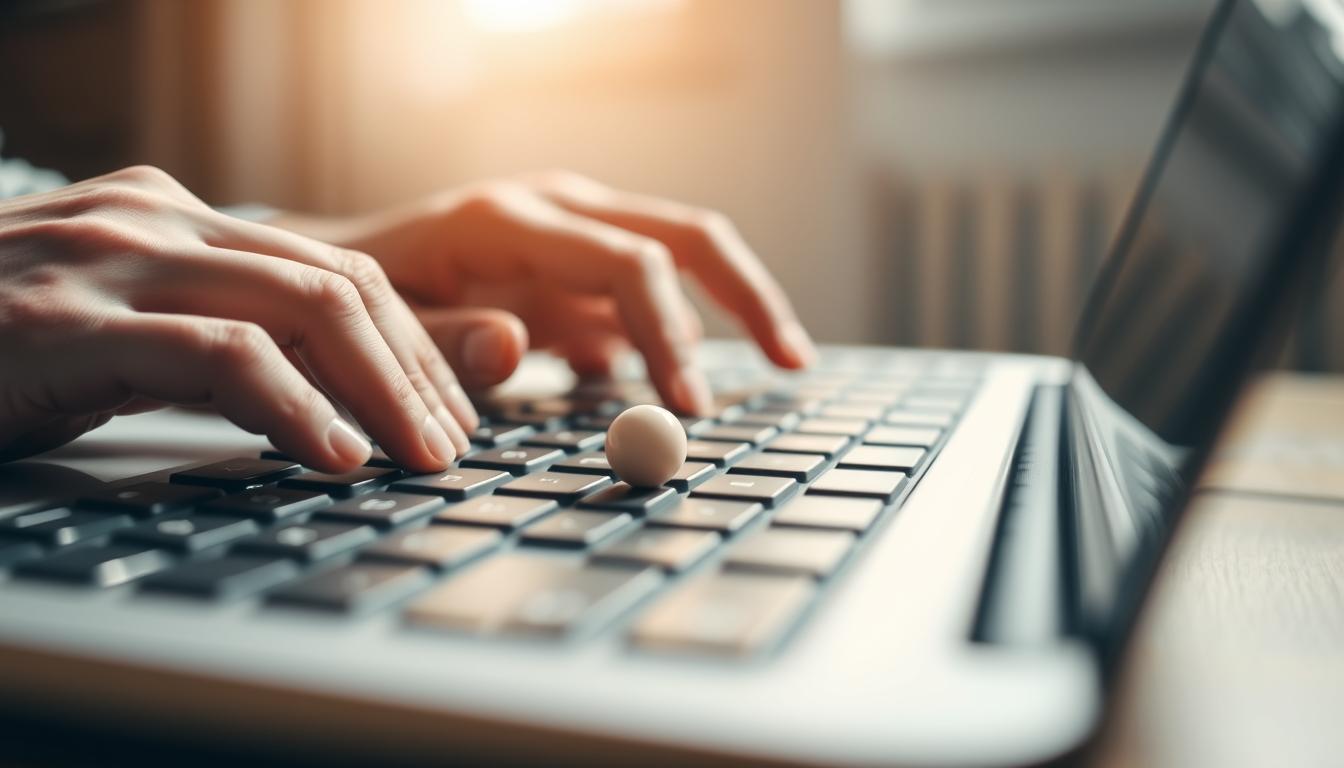
Typing mistakes are common, even for experts. You might send an email or message with a typo. The fastest way to fix a typo while typing is with tools like Gboard. It corrects typos in real-time.
On Pixel devices running Android 10+, Gboard’s “Fix it” chip highlights errors. You can tap to change words like “seperate” or “definate”.
Typing speed and accuracy are important. While quick fix typos save time, typing efficiency gets better with practice. Apps like WhatsApp or Gmail suggest corrections as you type.
Even simple actions, like deleting a whole word instead of backspacing, help improve typo correction. This makes your typing better over time.
Learn how Gboard’s English proofreading and keyboard features make fixing typos a habit. These tricks reduce frustration and improve your digital communication. Whether you’re writing a report or texting a friend, you’ll see the difference.
Understanding Common Typing Mistakes
Typing errors are common, even for experts. Mistakes like “hte” for “the” occur when fingers get keys mixed up. Homonym errors, like “their” for “there,” confuse readers. Also, typing too fast can lead to extra letters or missing spaces.
These errors are not random. They come from how our brains and hands work together.
Speed is key. Most typists type around 40 words per minute. Even fast typists make mistakes. Mental errors, like confusing “affect” and “effect,” show brain misfires.
Schools often don’t teach typing, leaving many to use slow methods. But, daily practice improves accuracy. Good posture and proper hand placement on the keyboard also help. Knowing these patterns helps us choose the right solutions, like shortcuts or voice tools, to reduce errors.
Keyboard Shortcuts: A Lifesaver
When typos happen, keyboard shortcuts save the day. The undo typing errors button (Ctrl+Z on Windows, Cmd+Z on Mac) lets you go back instantly. No need for endless backspacing—just one tap to correct mistakes.
Use Ctrl+Backspace (Windows) or Option+Delete (Mac) to delete words quickly. These delete word shortcuts make fixing typos fast. No more slow, repetitive typing.

Quick edit shortcuts like Ctrl+Arrow keys move through text smoothly. Hold Shift to highlight words for quicker corrections. Switch between apps like Word or Google Docs easily, without learning new commands.
Windows and Mac users have similar fixes but some differences. Both use Ctrl+/Cmd+Z to undo mistakes. Over 70% of typists use undo every day, saving hours each week. Learning these shortcuts can cut editing time by 30%, making editing smoother.
Practice these shortcuts every day. Start with Ctrl+Backspace to erase words or Ctrl+Z to undo typos. Your fingers will learn quickly. Try them now and make your emails and reports look better, faster, and without frustration.
Auto-Correct: Your Best Friend
Auto-correct can go from annoying to super helpful when you customize autocorrect to fit your needs. Every device, from iPhones to Windows laptops, has autocorrect settings you can adjust. Turn on spell check automation to catch typos right away. Also, tweak your predictive text settings for better communication.
First, check your device’s keyboard settings. On iOS, go to Settings > General > Keyboard to change predictive text or add shortcuts. Android users can find Google’s Gboard settings to disable data collection or reset learned phrases. If you see red squiggles under misspelled words, add them to your dictionary. This way, autocorrect won’t change unique terms like names or technical terms.
Use typing assistant tools like Grammarly’s keyboard for more grammar checks. Did you know macOS has inline predictions in supported languages? If a correction seems wrong, just hit backspace to undo it. For tough typos, use the Spelling & Grammar check in apps like Word to review errors. Siri or voice commands can also help with tricky words, making writing easy.
Remember, customize autocorrect to match your writing style. Turn off predictive text for formal emails or keep it on for casual chats. With these adjustments, auto-correct becomes your trusted tool for smooth messages, reports, and social posts, all without the old frustrations.
Using Text Expanders for Efficiency
Tools like TextExpander, PhraseExpress, and Alfred change how we type. They turn short abbreviations into full phrases instantly. For example, typing “sig” can expand to your full contact details or a standard email closing.
These expanders work on Windows, Mac, or web apps. They’re great for any workflow. Developers save hours by using code snippets with just a few keystrokes. Sales teams can send out emails quickly with pre-built templates.

Studies show businesses save 7–8 hours a month per user. That’s almost a full day. Customers want quick replies, and text expanders help meet that need. Imagine writing a support reply in seconds instead of minutes.
Make snippets for common phrases like addresses or policies. Use intuitive abbreviations for project updates or legal clauses. Organize them by category for easy access. This cuts down on typos and keeps communication consistent.
Whether you’re writing emails, coding, or reports, these tools make a big difference. They save hours each month, giving you time for more important tasks. Typing faster isn’t just a bonus—it’s a must-have for every team.
The Power of Editing Tools
Use advanced grammar checking tools and spell checkers to edit with confidence. The Hemingway Editor makes text easier to read by pointing out complex sentences. Microsoft Editor, integrated into Word, finds missing punctuation and tone changes.
Looking for Grammarly alternatives? ProWritingAid offers detailed feedback on clarity and style for $19.84/month. For casual use, try free proofreading software like Slick Write. Professional writers might prefer Scrivener’s $15.99/year plan.
These tools help catch errors like misplaced modifiers or comma splices. But, human judgment is essential. Stanford research shows AI can miss context-specific issues.
Use editing assistance to flag problems, then review them yourself. For example, Grammarly’s premium plan ($12/month) includes plagiarism checks. But, always check suggestions manually. Tools like WhiteSmoke (starting at $5/month) can help balance efficiency and accuracy.
iOS 18.1 and macOS Sequoia have new features. They let you rewrite text in three tones: Friendly, Professional, or Concise. The built-in Proofread tool shows changes made, and Summarize shortens long documents into bullet points.
Always use these features as guides, not replacements. Combining technology and human checks ensures your writing is polished and error-free.
Typing Practices to Reduce Typos
Learning touch typing techniques helps you type faster and more accurately. It builds muscle memory. This means you can type without looking at the keyboard.
Place your fingers correctly on the home row. For left-handed, it’s ASDF. For right-handed, it’s JKL. This way, you hit keys right without looking.
Start by focusing on accuracy in your drills. Let your fingers learn the right paths before speeding up.

Good typing posture is key. Keep your shoulders relaxed and wrists straight. Sit with your elbows at 90 degrees and the screen at eye level.
This setup reduces strain and helps you type smoothly.
It’s important to balance typing speed vs accuracy. Start with slow, careful practice. Focus on hitting keys correctly first. This builds your confidence.
As you get better, your speed will increase naturally. You won’t lose your accuracy.
Do short typing practice sessions every day. Try 10–15 minutes. Apps like Lightkey can help by suggesting corrections as you type.
Take breaks to reset your focus. Avoid distractions.
Small habits can lead to big changes. With consistent practice and the right form, you’ll become more accurate. Your fingers will remember the right paths, and your body will stay comfortable.
Configuring Your Keyboard
Ergonomic and mechanical keyboards can make typing more accurate. They fit your typing style better. Adjusting keyboard settings like sensitivity and layout can cut down on mistakes. Start by checking the actuation force on mechanical keyboards—stiffer switches help avoid accidental presses.
Optimizing your keyboard layout is also key. Try the Dvorak layout if QWERTY hurts your fingers. For laptops, make sure keys aren’t sticky; cleaning can help. Use Windows’ Keyboard Troubleshooter to fix driver issues, which helps 80% of users.
“Key sensitivity adjustment cuts typos by 20% for many users,” says Microsoft’s Hania Lian, noting that 34% of users overlook driver updates.
Adjust key repeat rates in Settings > Devices to match your typing speed. Disable Filter Keys if typing is delayed—this feature troubles 15% of users. Mechanical keyboards let you tweak spring tension, while ergonomic designs reduce wrist strain. Regularly test in Safe Mode to find software conflicts. Follow these steps to improve your typing.
Embracing Voice Typing Technology
Voice typing accuracy has changed the game for dictation software. Windows 11, Mac’s Voice Control, and mobile tools make typing a thing of the past. Microsoft Word’s Dictate and Google Docs’ voice typing let you speak freely.

Dragon dictation software is great for professionals with its customizable vocab. Voice commands like “bold that” or “insert bullet point” save a lot of time. Google Docs is free, but Microsoft’s suite works across apps like PowerPoint and Outlook.
Privacy is important. In quiet places, studies show 95% accuracy. But, background noise can lower this. Microsoft 365 subscribers get premium features like real-time edits.
“Voice recognition accuracy has reached 95% in ideal conditions.”
Over 70% of professionals say voice typing makes them more productive. It also reduces strain, like carpal tunnel syndrome. As voice tech grows, trying these tools can make you more efficient. Start with short sessions and speak clearly.
Strategies for Quick Error Correction
Creating a typo prevention workflow is all about finding the right mix of error detection methods. Try proofreading techniques like reading aloud or flipping sentence order. This helps catch mistakes your brain might overlook. Use tools from earlier steps, like auto-correct and voice typing, to find issues quickly.
Context checking is key to catching typos others miss. Try reading text backward or adjusting font size to break your autopilot mode. Tools that read text aloud can highlight awkward phrasing your eyes might miss. Keep track of common errors in emails, reports, or code to make custom checklists for each task.
Time is of the essence. Quick scans are fine for short messages, but formal work needs deeper proofreading. Letting text “cool” for 10 minutes before reviewing can help. Small steps like this can reduce stress and boost accuracy.
Find a routine that fits your habits by combining methods. Start with auto-correct, then review aloud. Over time, this workflow will make spotting typos second nature. Remember, no single method fixes everything. Experiment until you find your best system.
Conclusion: Typo-Free Typing is Within Reach
Starting to type without mistakes is easy. Begin with professional typing skills like touch typing. This builds muscle memory, letting your fingers find keys without thinking. Tools like Microsoft Editor in Outlook help by catching errors as you type.
Every choice you make gets you closer to typing better. Whether it’s adjusting your keyboard or using voice commands, it all helps. Each step you take brings you closer to typing without errors.
Start with one strategy at a time. Practice tricky key pairs or use auto-correct in email drafts. For example, Microsoft Editor’s real-time suggestions save you minutes on every email. Even simple steps like hiding the suggestions count in Outlook or enabling spell check before sending help a lot.
Remember, typing fast and accurately go together. By reducing typos, you boost your productivity. Start by learning keyboard layouts or using text expanders for common phrases. Over time, these habits become automatic, making your emails, reports, and messages clearer.
Investing in these techniques means clearer communication and less frustration. Try two methods this week, like auto-correct or practicing finger placement on the F and J keys. Small changes today lead to typing without mistakes tomorrow. Every message then shows off your skills.